
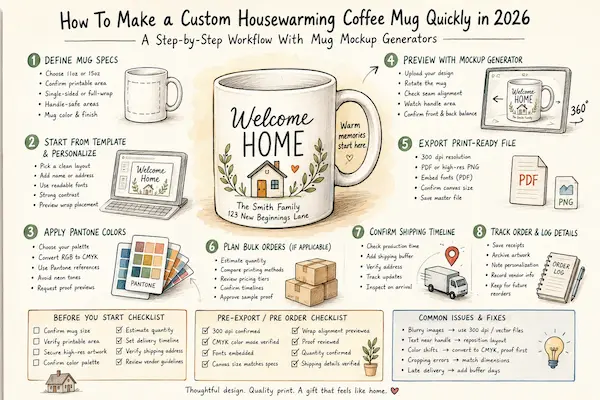
A practical guide explaining how to design and prepare a personalized housewarming mug using mug mockup generators and print-ready workflows.
Introduction
A housewarming gift often carries both symbolic and everyday value. Custom mugs meet both needs. They can reflect a new address, shared memories, or a simple welcome message, while remaining practical enough for daily use.
Despite their simplicity, custom mugs require attention to formatting. Designs must wrap correctly around a curved surface. Colors may print differently than they appear on screen. File resolution affects sharpness and clarity.
Mug mockup generators help reduce these technical hurdles. They provide dimension presets, curved previews, and export settings tailored to print production. Some focus on layout flexibility, while others emphasize production readiness.
The guide below outlines a structured workflow that prioritizes sizing accuracy, color consistency, and print preparation.
Step by Step How To Guide for Using Mug Mockup Generators
Step 1: Define Custom Mug Specifications
Goal
Clarify mug size, printable area, and surface constraints before starting the design.
How to do it
- Choose standard capacity (11 oz or 15 oz).
- Confirm printable width and height.
- Decide between single sided or full wrap printing.
- Identify handle safe areas.
- Select mug color and finish.
What to watch for
- Designing beyond print boundaries.
- Overlooking handle placement.
- Ignoring vendor specific dimension requirements.
- Choosing finishes incompatible with print method.
Tool notes
Before laying out art work, review production templates. The mug design printer offerings from Adobe Express include preset dimensions aligned with common mug print areas. Printful also publishes printable area diagrams to help confirm sizing requirements.
Step 2: Start From a Structured Template and Personalize the Layout
Goal
Create a balanced housewarming design suitable for everyday visibility.
How to do it
- Select a minimal layout template.
- Insert the recipient’s name or new address.
- Adjust font sizing for readability at arm’s length.
- Maintain strong contrast between text and background.
- Preview wrap placement.
What to watch for
- Decorative fonts reducing readability.
- Overcrowded layouts.
- Uneven spacing near edges.
- Poor color contrast.
Tool notes
Adobe Express provides editable templates sized specifically for mugs. If creating custom vector illustrations or refining line art, Affinity Designer can prepare scalable assets prior to import.
Step 3: Apply Pantone Color Matching
Goal
Improve color consistency between screen preview and final print.
How to do it
- Identify intended color palette.
- Convert RGB colors to CMYK equivalents if required.
- Reference Pantone values for theme consistency.
- Avoid highly saturated neon tones.
- Request proof previews when available.
What to watch for
- Unexpected color dulling.
- Dark backgrounds printing unevenly.
- Unverified RGB to CMYK conversion.
- Skipping proof approval.
Tool notes
Affinity Designer supports CMYK profile adjustments and Pantone color references. Confirm vendor-supported color profiles before exporting final artwork.
Step 4: Preview the Mug Using a Mockup Generator
Goal
Evaluate alignment and wrap accuracy on a curved surface.
How to do it
- Upload finalized artwork to a mockup interface.
- Rotate the mug preview.
- Inspect text alignment across seams.
- Check spacing near the handle.
- Confirm balance between front and back layout.
What to watch for
- Text drifting into handle area.
- Visual distortion across wrap edges.
- Uneven visual weight.
- Cropped graphics.
Tool notes
Printify and Printful both provide built in mug mockup previews that simulate curved surface placement before order submission.
Step 5: Export a Print-Ready Mug File
Goal
Generate a high resolution file suitable for production.
How to do it
- Export at 300 dpi resolution.
- Use PDF or high resolution PNG depending on vendor guidelines.
- Embed fonts when exporting as PDF.
- Confirm correct canvas dimensions.
- Archive the master design file.
What to watch for
- Low resolution output.
- Missing font embedding.
- Incorrect canvas size.
- Transparency errors.
Tool notes
Adobe Express supports high-resolution export options suitable for print workflows. Scribus can be used for preflight checks to confirm bleed and embedded fonts.
Step 6: Plan Bulk Corporate Orders (If Applicable)
Goal
Prepare for scaled production efficiently.
How to do it
- Estimate realistic order volume.
- Compare sublimation and direct printing methods.
- Review bulk pricing tiers.
- Confirm turnaround timelines.
- Approve sample proofs before scaling.
What to watch for
- Setup fees for small runs.
- Color limitations in bulk processes.
- Inventory overestimation.
- Production bottlenecks.
Tool notes
Printify provides transparent quantity-based pricing structures within its order dashboard, making it easier to assess cost differences at scale.
Step 7: Confirm Shipping and Delivery Timeline
Goal
Ensure the mug arrives before the housewarming event.
How to do it
- Confirm production window.
- Add buffer days for shipping.
- Verify delivery address.
- Monitor tracking updates.
- Inspect packaging upon arrival.
What to watch for
- Peak season delays.
- Damaged cartons.
- Split shipments.
- Incorrect address entries.
Tool notes
ShipStation can help monitor shipments and organize tracking updates when coordinating multiple gift deliveries.
Step 8: Track Order Details and Presentation Logistics
Goal
Maintain organization and documentation for future reorders.
How to do it
- Store confirmation receipts.
- Archive final artwork files.
- Document personalization details.
- Record vendor and order information.
- Note delivery timeline for future reference.
What to watch for
- Misspelled personalization.
- Missing documentation.
- Lost design files.
- Incomplete vendor records.
Tool notes
HubSpot can track order history, recipient details, and event reminders when coordinating multiple housewarming gifts.
Common Workflow Variations
Minimal typography design
A simple name and date layout reduces complexity and works well for modern kitchens. Template-based tools streamline spacing adjustments.
Photo-based mug
High-resolution images are essential. Image editing in Affinity Designer can improve brightness and clarity before export.
Illustrated home sketch
Vector-based line art ensures clean scaling and sharper print results on curved surfaces.
Bulk realtor closing gifts
Standardized layouts and quantity pricing dashboards help maintain consistency across multiple properties.
Before You Start Checklist
- Confirm mug size
- Verify printable area dimensions
- Secure high-resolution artwork
- Confirm color palette
- Estimate quantity
- Set delivery timeline
- Verify shipping address
- Review vendor print guidelines
Pre-Export / Pre Order Checklist
- 300 dpi resolution confirmed
- CMYK color mode verified (if required)
- Fonts embedded
- Canvas size matches specifications
- Wrap alignment previewed
- Proof reviewed
- Quantity confirmed
- Shipping details verified
Common Issues and Fixes
Blurry images
Use vector files or high-resolution graphics at 300 dpi.
Text too close to handle
Reposition layout to avoid curvature distortion.
Unexpected color shifts
Convert to CMYK before export and review digital proofs.
Cropping errors
Match document dimensions precisely to vendor specifications.
Late delivery
Add production buffer days and confirm shipping timelines in advance.
How To Use Mug Mockup Generators: FAQs
Is a template necessary for beginners?
Templates simplify sizing and reduce alignment errors.
What resolution is required for mugs?
Most commercial printers require 300 dpi for clarity.
Are Pantone colors required?
Pantone matching improves accuracy but is not mandatory for personal gifts.
Are wraparound designs harder to manage?
They require careful alignment near the handle but are manageable with preview tools.
Can designs be reused later?
Saving master files allows easy reorders or personalization adjustments.